Zangle - Connecting News Item to a Web Link
Create a Class News item

In Zangle, open the Teacher Connection and select Class News. Add a New News Item and set the dates. You may wish to set the range for the entire semester, depending on the resource. You can apply it to as many classes as you wish.
Add links
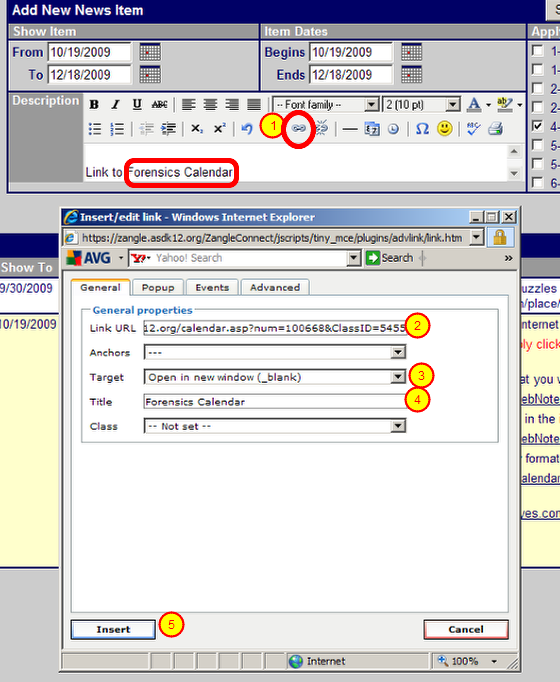
Open a new browser window and navigate to the web site of interest and copy the address (Ctrl C or Open-Apple C) - then return to your Zangle page
(1) Enter text in your news item, highlight it, and select the Hyperlink tool.
(2) Paste your web address into Link URL (Ctrl V or Open-Apple V)
(3) Change the Target to 'Open in new window (_blank)'. THIS IS IMPORTANT! If you do not, the page will open up within the Zangle framework and will make a mosaic of Zangle pages and your other site.
(4) Enter a Title for your page. (This shows up in the tab at the top of your browser window when you go to the page.)
(5) Click Insert. Your link should now show as underlined.
Submit the News Item.
Test your link

You can test your link by clicking on it in the Edit Existing News Items window.
Note that when you click on the link, it should open the page in a new window, separate from your Zangle window.
Parents and students will see a similar item

Again, when they click on the link, it opens a new window for them, showing the Calendar. (Or the homework page or whatever else you have linked there.) From that page, they can navigate through your SiteBuilder site, just as with any web site.
Return
Return to Zangle News page